1. Install the app
Install Hotspot Studio
from the App Store. The free plan is enough to publish your first shoppable
image, and installation adds nothing to Horizon’s theme files — the app is a
standard Online Store 2.0 block, so uninstalling later leaves no trace either.
2. Create a section and tag the photo
In the app, create a new section and upload your lifestyle shot — a photo or a short
looping video — or start from a template if you want a working layout to edit
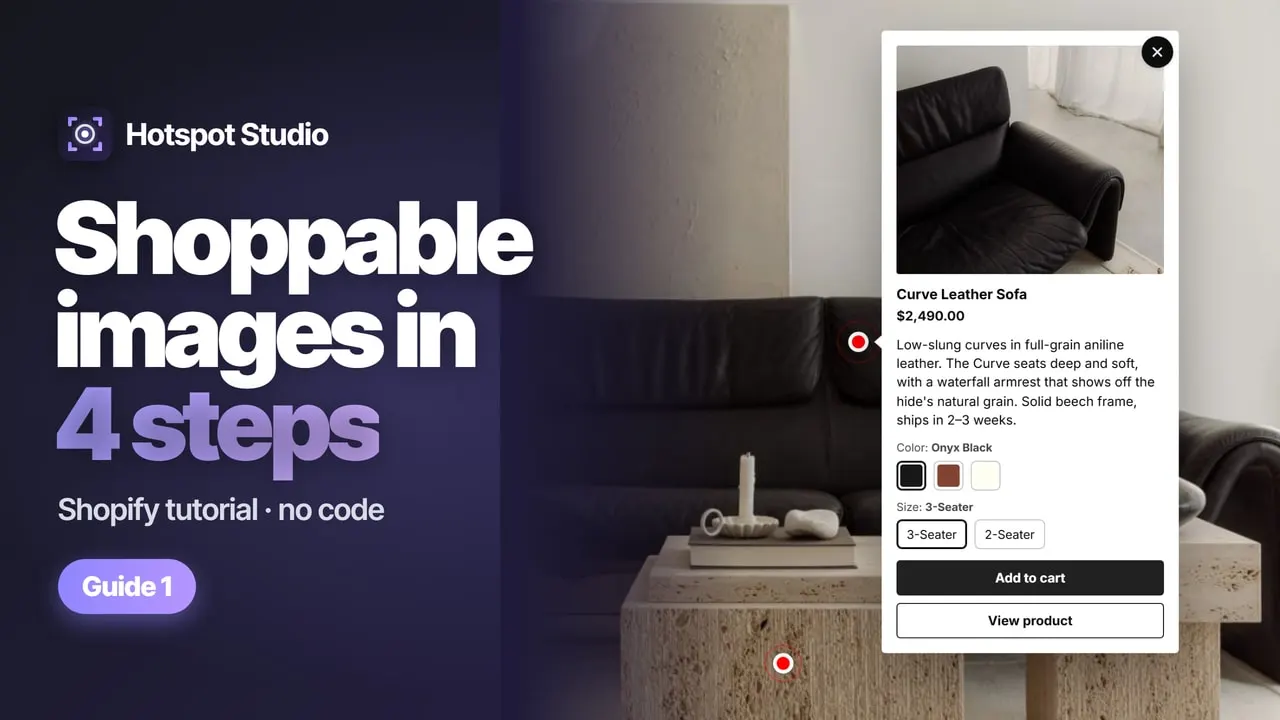
instead of a blank canvas. Drag a hotspot onto each product in the frame and pick
the matching product from your catalog — or, for a photo, let AI suggest the pins:
it reads the image and matches your catalog, and you approve every pin before
anything saves. Popups get the live price, variant picker and add-to-cart
automatically; sold-out items say so instead of failing at the cart.
3. Match Horizon’s look — and phones
Horizon’s presets lean clean and editorial, and the popup should read like part of
that. Pick a style preset and tune colors, corners and type — no CSS involved. Two
options are worth switching on right away: a separate mobile image (a tighter
crop with its own hotspot positions, so dots sit exactly on the products on phones
too) and Shop the Look — the one-click buy-the-set button, optionally with a
look discount that applies only to items bought from this section.
4. Add the block in Horizon’s theme editor
In Online Store, click Edit theme on your Horizon theme. On the page
where you want the look, click Add section, open the Apps tab and
choose Hotspot Studio. The block follows Horizon’s edge-to-edge layout and renders
full width like a native section — drag it into position and hit Save.
That’s the entire theme-side setup.
5. Put looks on product pages automatically
For product pages, add the block to Horizon’s product template once. Then, back in
the app, assign each section to products, variants, whole collections or specific pages — the right
look shows up on the right product page by itself, and swapping a product’s look
never means touching the theme editor again. Variant-level assignment even lets the
gallery swap when a shopper picks a different colorway.