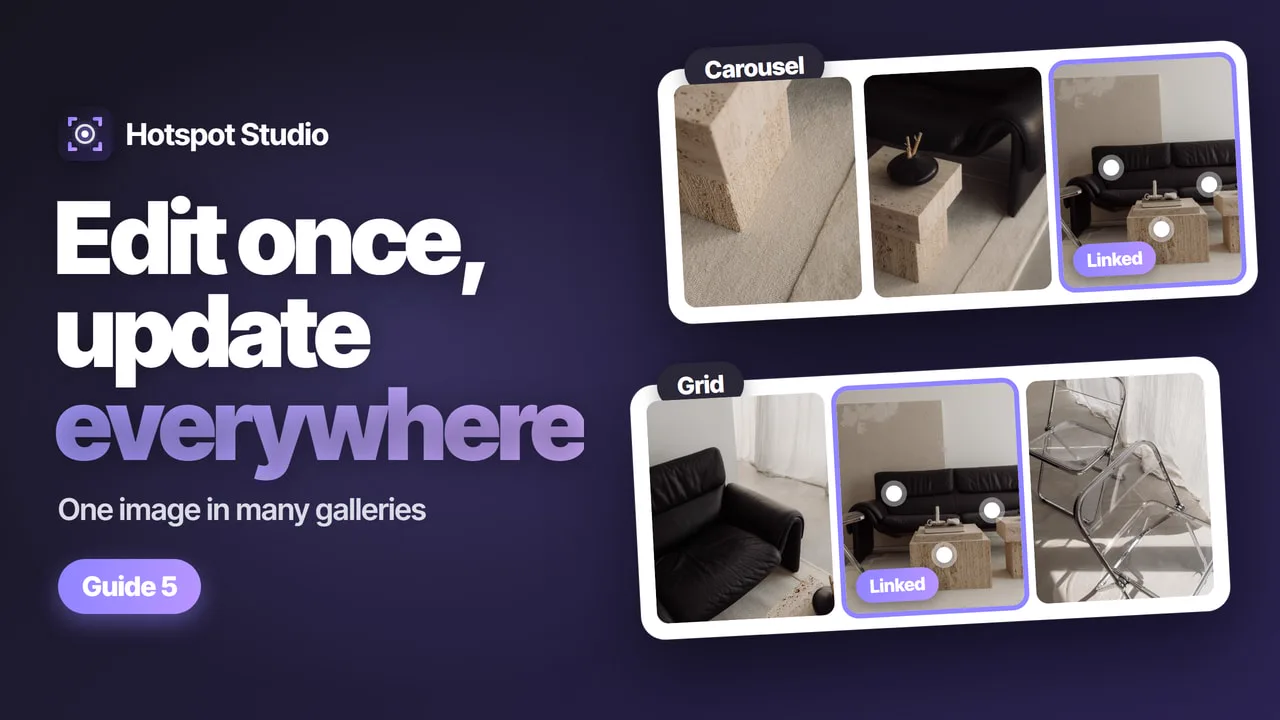
Guide · Linked images

One shoppable look, every gallery it belongs in

Your best room or outfit shot belongs in the lookbook, in a collection’s carousel and on the home page. With linked images you build it once, show it in all of them, and edit it in one place: publish, and every gallery that shows it updates.

The same look in five galleries is five edits

A strong shot rarely lives in one place. It leads the season’s lookbook, sits in a collection page carousel and turns up again in a home page grid. In a theme, each of those galleries keeps its own copy of the photo and its hotspots, so swapping a product, moving a marker or rewriting the caption means finding and editing every copy — and the one you forget keeps showing the old version.

How linked images work

With linked images the look lives in one place: a section with the Single layout, one photo with its hotspots. Galleries show linked copies of it. Edit the original, publish it, and every gallery that shows it updates — the app tells you how many. You can link a look from the image itself or from inside a gallery.

  • From the original — the photo and its phone version, every hotspot with its product, positions and popup, the caption and button on the image, and its background.
  • The gallery’s own — where the image sits among the gallery’s other images, and its Shop the Look settings in that gallery.
  • Any gallery with room — Grid, Masonry, Carousel, Editorial or Collage.
Step by step

Link a look step by step, no code

About ten minutes, on Dawn, Horizon or any Online Store 2.0 theme. Your galleries stay where they are on the store: they just show the linked look.

1

Build the look once

Create a section with the Single layout: one photo with its hotspots, a phone image if you want one, and a caption. Publish it — galleries show its published version.

2

Add it to your galleries

In its editor, scroll to In galleries, click Add to gallery, tick the galleries and confirm. No Save needed: a published gallery shows it at once; one with unpublished edits of its own shows it when you publish that gallery.

3

Or link it from a gallery

In a gallery’s editor, click Add linked image in the Images card or in the Linked images card, pick one or more looks, add them, then click Publish changes.

4

Check it in the gallery

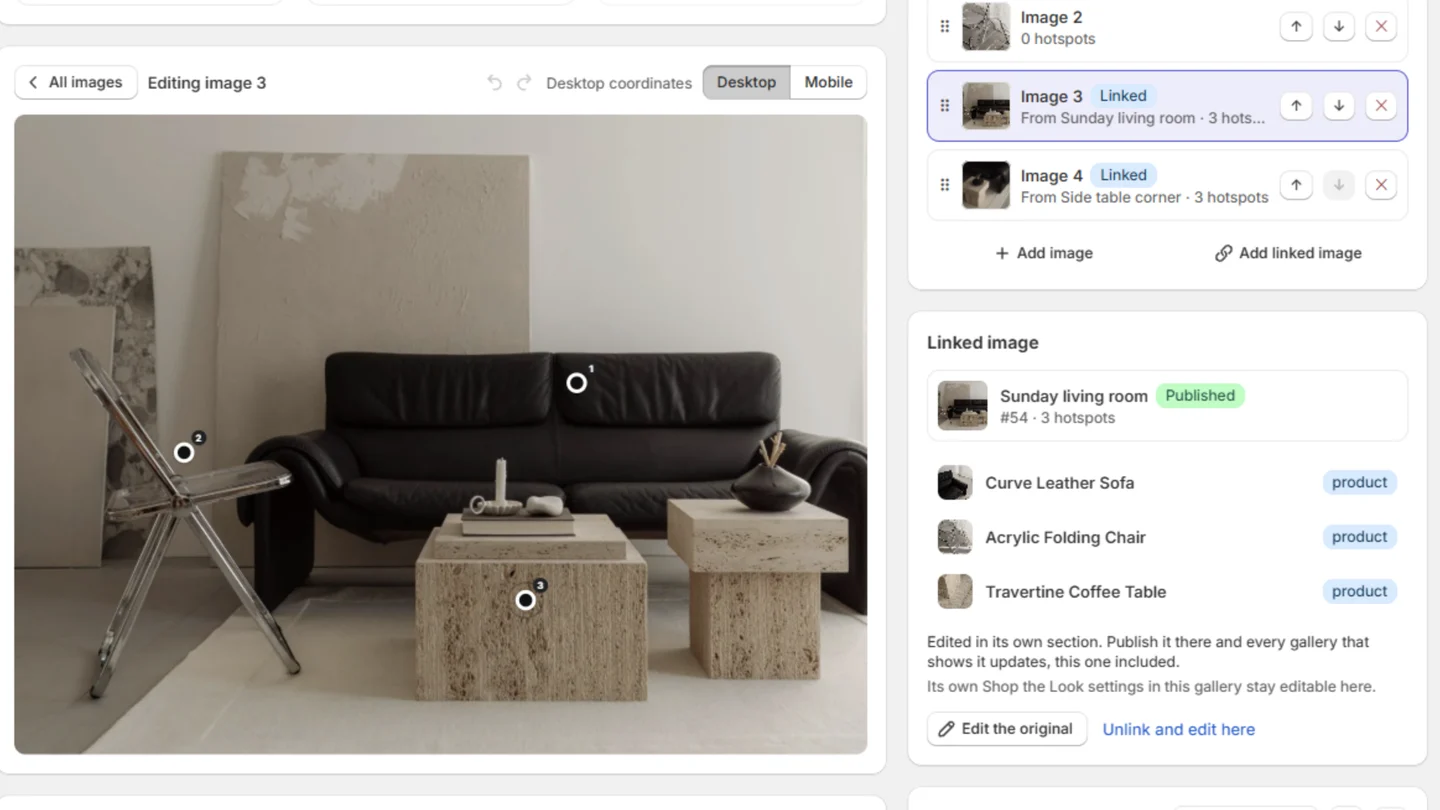
The copy carries a Linked badge and is read-only there: its markers open their popups, but nothing moves. The Linked image panel shows the original and its hotspots.

5

Edit once, publish

Click Edit the original, make the change and click Publish changes. The message says how many galleries were updated, and every gallery that shows the look shows the change.

6

Keep one gallery different

Need another version in one gallery? Select the copy there and click Unlink and edit here. It becomes that gallery’s own image, editable like any other; the other galleries stay linked.

Video guide · 2:02

Prefer to watch? Every step on video

Filmed on a Horizon store: build a look once, add it to two galleries, link another look from inside a gallery, then edit the original and publish.

  • Add to gallery: tick the galleries, no Save needed
  • Add linked image from the gallery side, then Publish changes
  • In the gallery the copy is read-only; Unlink and edit here keeps it as the gallery’s own
  • Edit the original and publish: “Updated in 2 galleries”
In the gallery

Read-only in the gallery, edited in one place

A linked copy looks and sells like every other image in the gallery. What it doesn’t do is drift: its hotspots can’t be dragged out of step by accident.

  • Clearly marked — a Linked badge and “From …” with the original’s name in the gallery’s image list.
  • The original one click away — Edit the original opens it with a link back to the gallery.
  • A deliberate way out — Unlink and edit here keeps the copy as the gallery’s own image; later publishes of the original no longer reach it.
  • Per-gallery selling — its Shop the Look settings in each gallery stay editable there.
A Grid gallery in the editor: two images with a Linked badge, the Add linked image button, and the Linked image panel with Edit the original and Unlink and edit here
Where it pays off

One look, many places, one edit

📖

Lookbook and collections

The season’s hero looks lead the lookbook grid and also sit in each collection’s carousel — one set of looks, every page in step.

🏠

Home page and campaigns

Run the same campaign shot in the home page grid and on the landing page gallery; change a product once and both follow.

🔁

Product swaps

A product is replaced or a new one joins the shot: pin it on the original, publish, and every gallery that shows the look has it.

FAQ

Linked images questions, answered

Can I show the same image in several galleries on Shopify?

In a theme, each image section keeps its own copy of a photo, so the same look in two galleries means two edits. With linked images in Hotspot Studio, one single-image section can appear in any number of galleries as linked copies, and publishing the original updates all of them.

What stays in sync, and what can each gallery change?

The photo and its phone version, every hotspot with its product, positions and popup, the caption and button on the image, and its background come from the original. Each gallery decides where the image sits among its other images and keeps its own Shop the Look settings for it.

Which gallery layouts can show a linked image?

Any gallery — Grid, Masonry, Carousel, Editorial or Collage — with room for one more image. Grid and Masonry hold up to 48 images, a Carousel 12, a Collage 6 and an Editorial 3.

What happens when I edit the original?

Nothing changes in the galleries until you publish it, because they show its last published version. Click Publish changes and the message says how many galleries were updated. A gallery with unpublished edits of its own, or one that isn’t published yet, takes the new version when you publish that gallery.

Can I change a linked image in just one gallery?

Yes. Select it in that gallery and click Unlink and edit here. The copy becomes the gallery’s own image, editable like any other, and later publishes of the original no longer reach it. The other galleries stay linked.

Which plan includes linked images?

Starter and up, from $7.99/month with a 7-day free trial. Starter also lifts the Free plan’s limits: unlimited sections, hotspots and custom presets, plus scheduled publishing.

Build the look once. Show it in every gallery.

Linked images come with Starter and up — from $7.99/mo with a 7-day free trial.

Install on the App Store